A 1-minute recording in. A finished guide out.
Below is a real, unedited conversion: a frame from the recorded walkthrough above, and the guide our agentic AI produced below - transcript segments, ordered steps, and one AI-chosen screenshot per step.
Input: a screen recording of Acme CRM
Output: Acme CRM API Access Quick Start Guide
Set up programmatic API access for an Acme CRM account: open Settings, generate a new API key from the Profile tab, and store it securely.
- An Acme CRM account
- Permission to manage API keys in Settings
Open the Settings menu
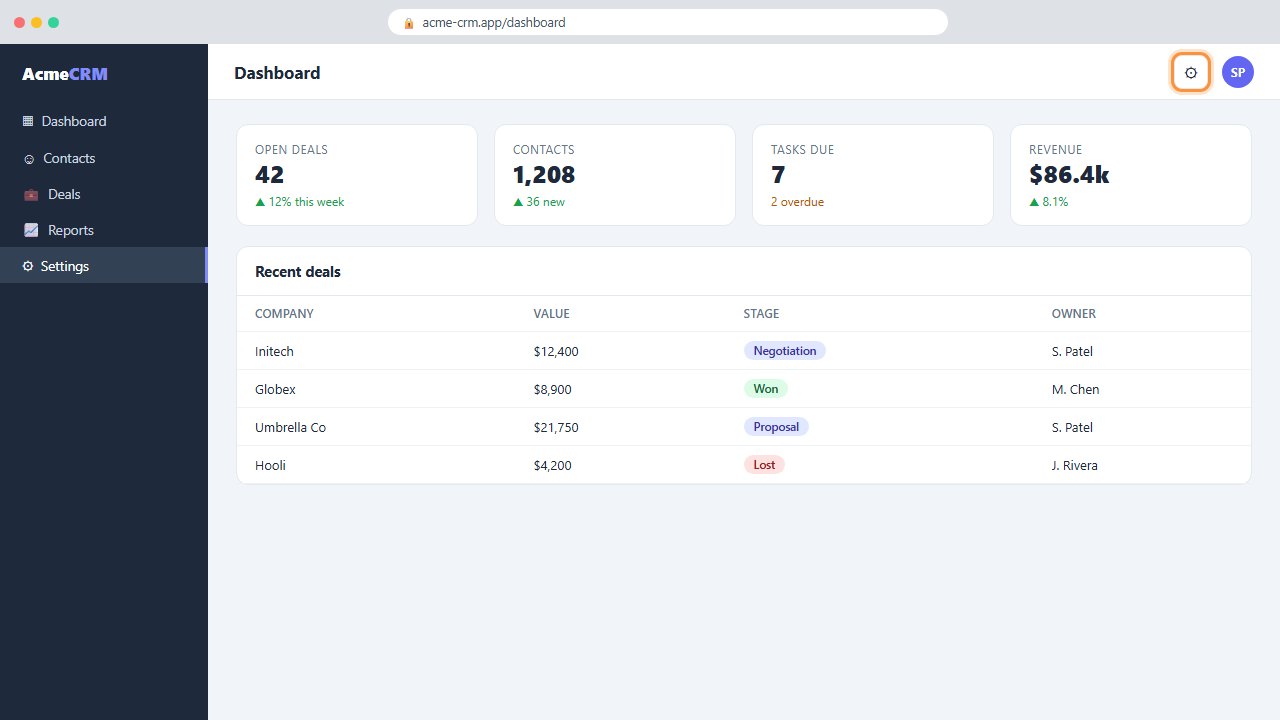
From anywhere in Acme CRM, click the gear icon in the top-right corner of the header to open Settings.
Select the Profile tab
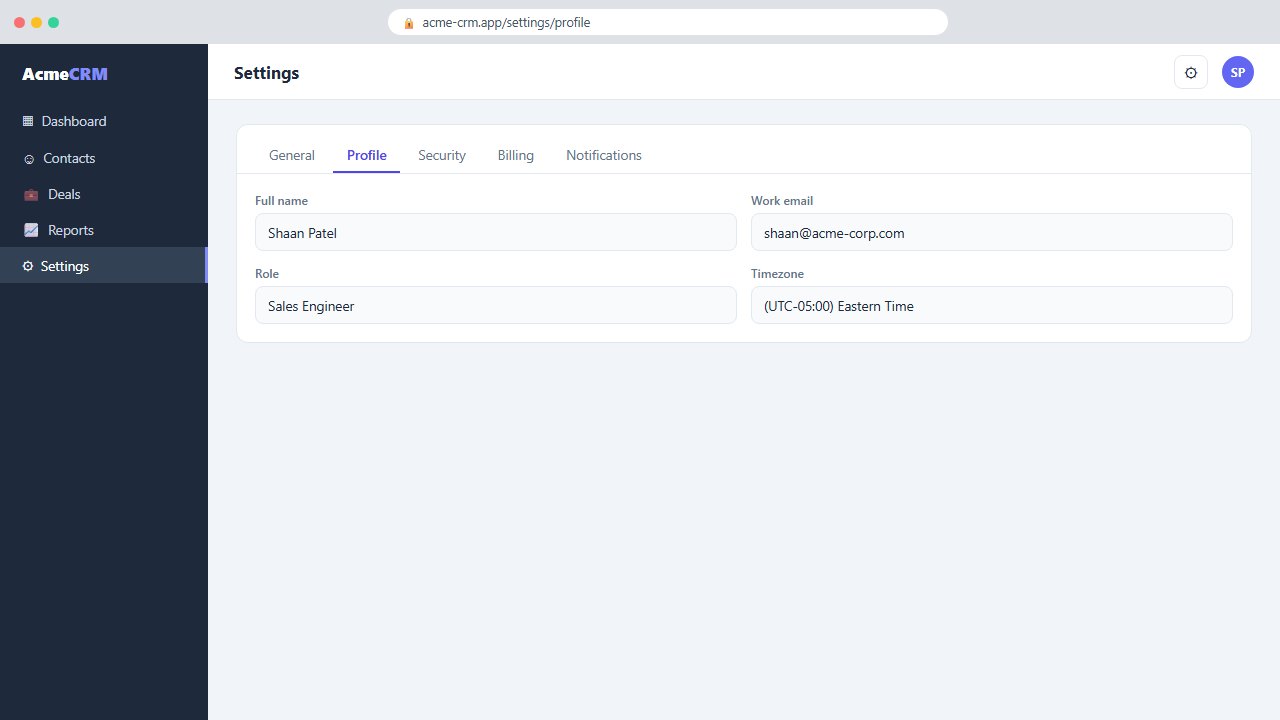
In Settings, open the Profile tab — this is where account-level options, including API access, live.
Scroll to API access
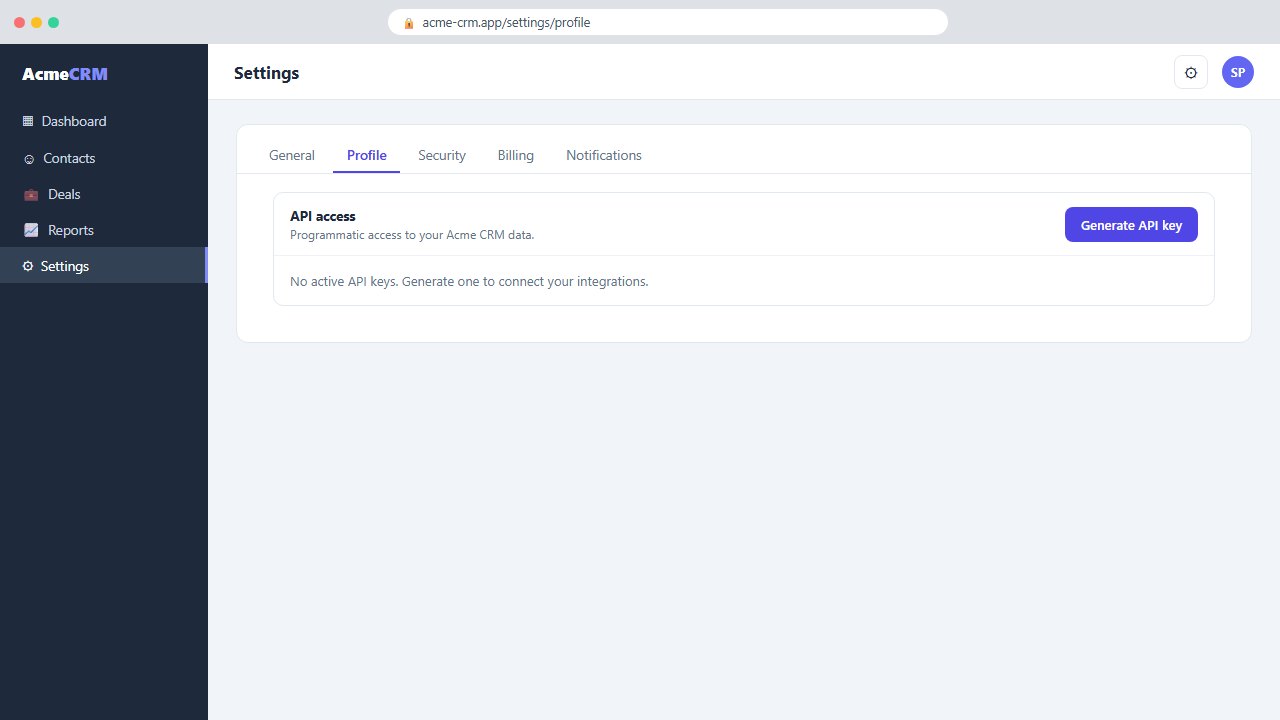
Scroll down past your profile details to the API access card. It shows any existing keys and the option to create new ones.
Generate a new key
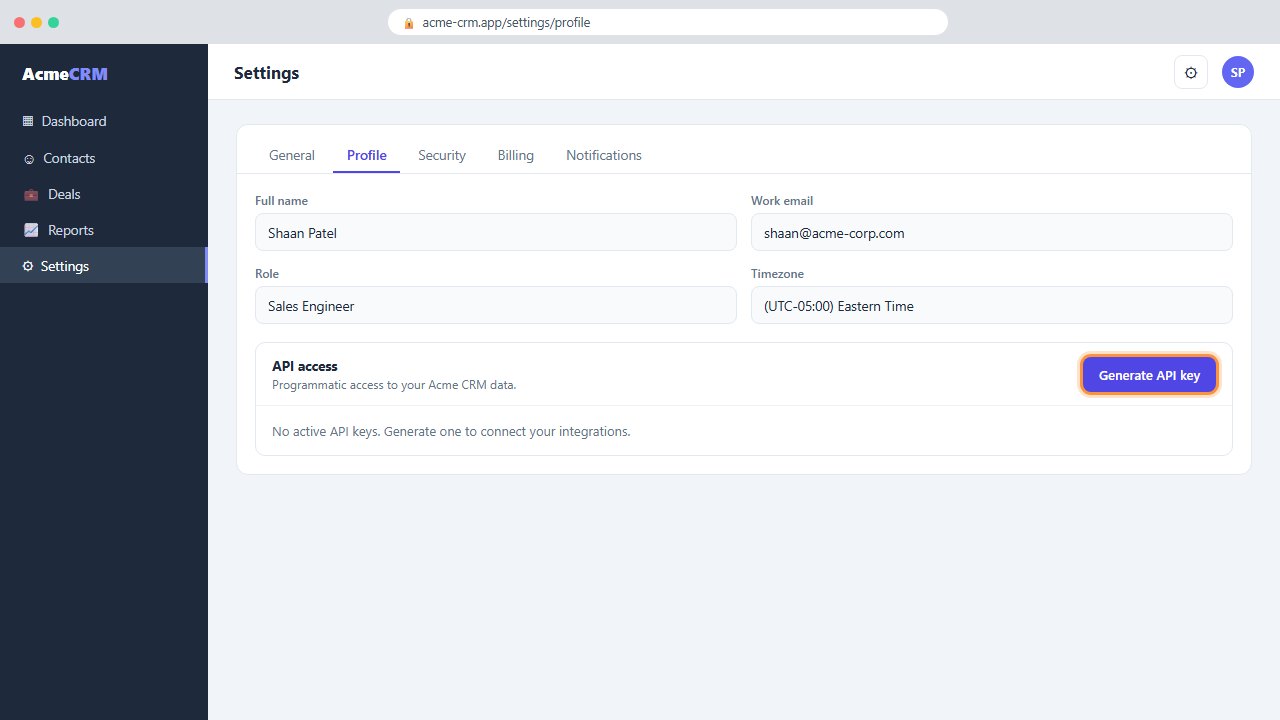
Click Generate API key. Acme CRM creates a key immediately — no approval or waiting period.
Copy and securely store the key
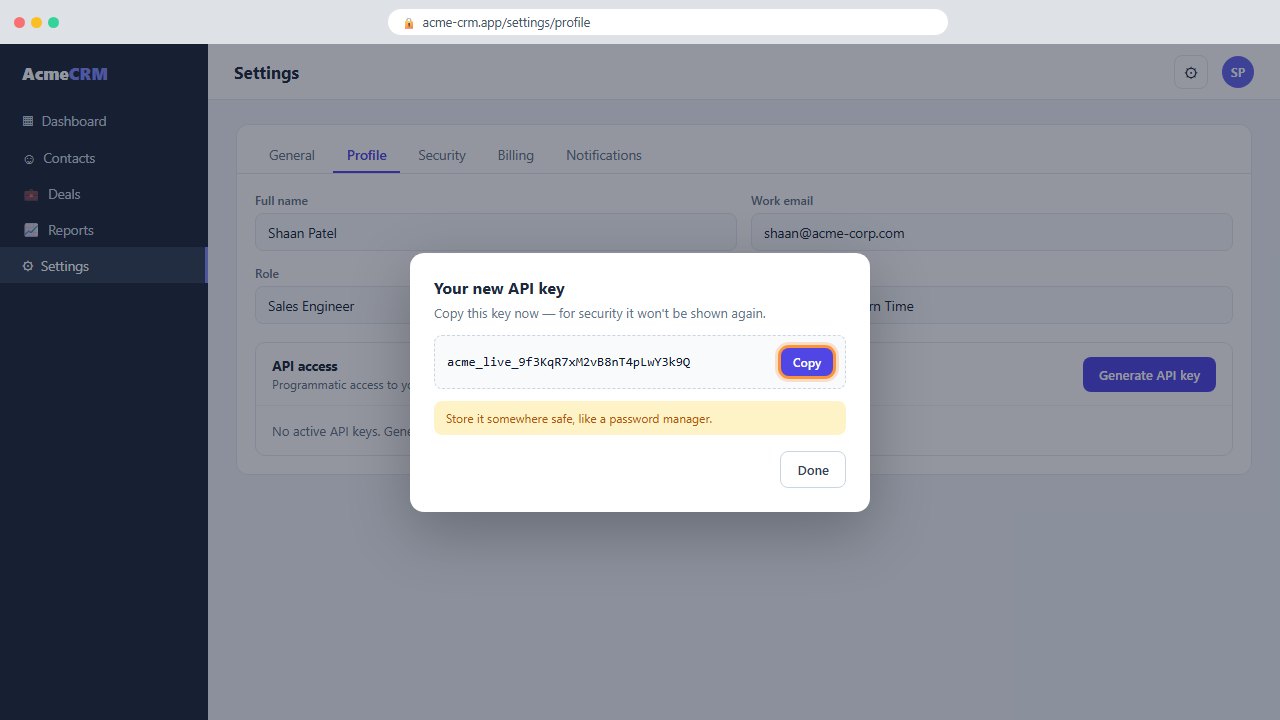
In the dialog, click Copy and store the key somewhere safe, such as a password manager. Important: the full key is shown only once — after you close the dialog it can't be recovered, only revoked and regenerated.
Confirm the key is active
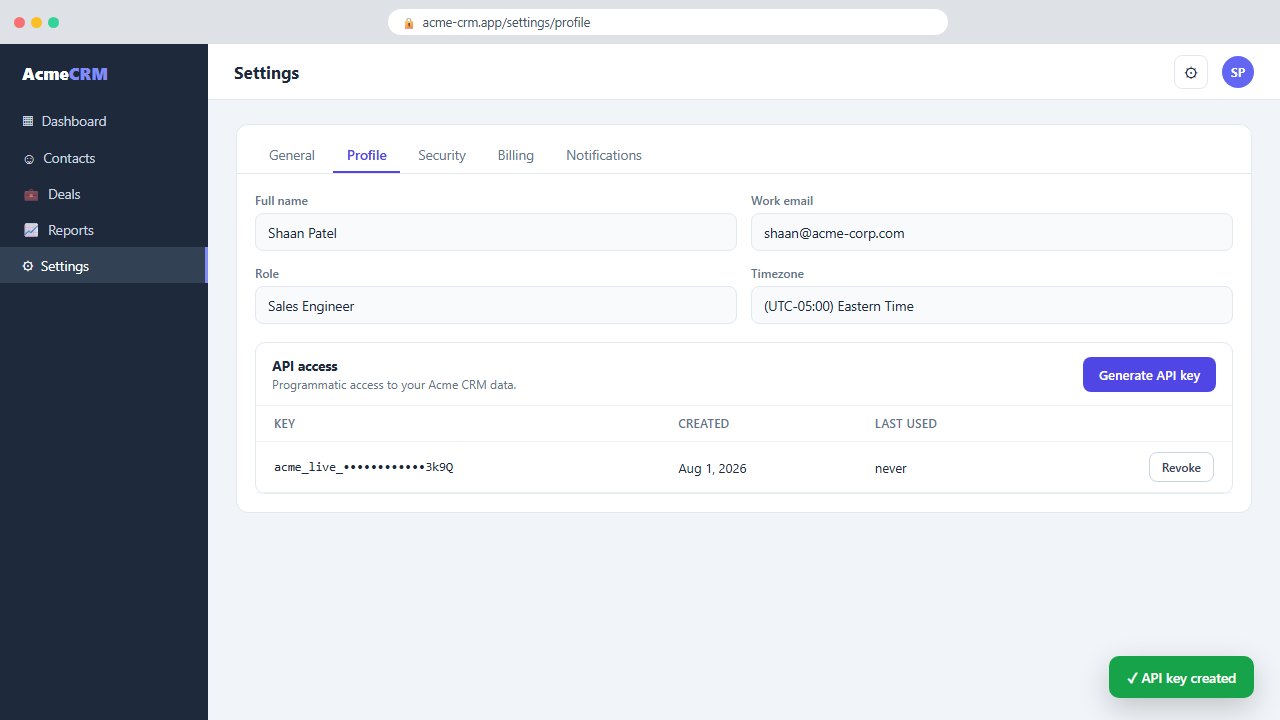
Back in API access, confirm the new key appears in the list (masked for security) and the confirmation toast is shown. Your integration can now authenticate with this key.
Now try your own video
Single conversion, 10-pack, or subscription - your source video stays stored in your account.